
iPhone to PC, no cable.
Install GreySpace on your iPhone and your Windows PC, put them on the same Wi-Fi, and send videos, photos and files from one to the other, both ways. No cable, no iTunes, no iCloud, and no size limit*.
On the iPhoneYour device

Scan this code with your iPhone’s camera.
On the Windows PCYour device
Download for WindowsInstalled by the Microsoft Store: no warnings, automatic updates.
By email or message, to open it on your computer.
Free up to 10 GB of sending a month, no account.
*No limit with Pro. Receiving stays unlimited, even on Free.
Ready in three steps.
-
Install the app on both
GreySpace on the iPhone from the App Store, and on the PC from the Microsoft Store. Free, no account.
-
Same Wi-Fi, or Personal Hotspot
Connect the iPhone and the PC to the same network. No router around? Turn on the iPhone’s Personal Hotspot and join it from the PC: the transfer stays between the two devices.
-
Pick, send
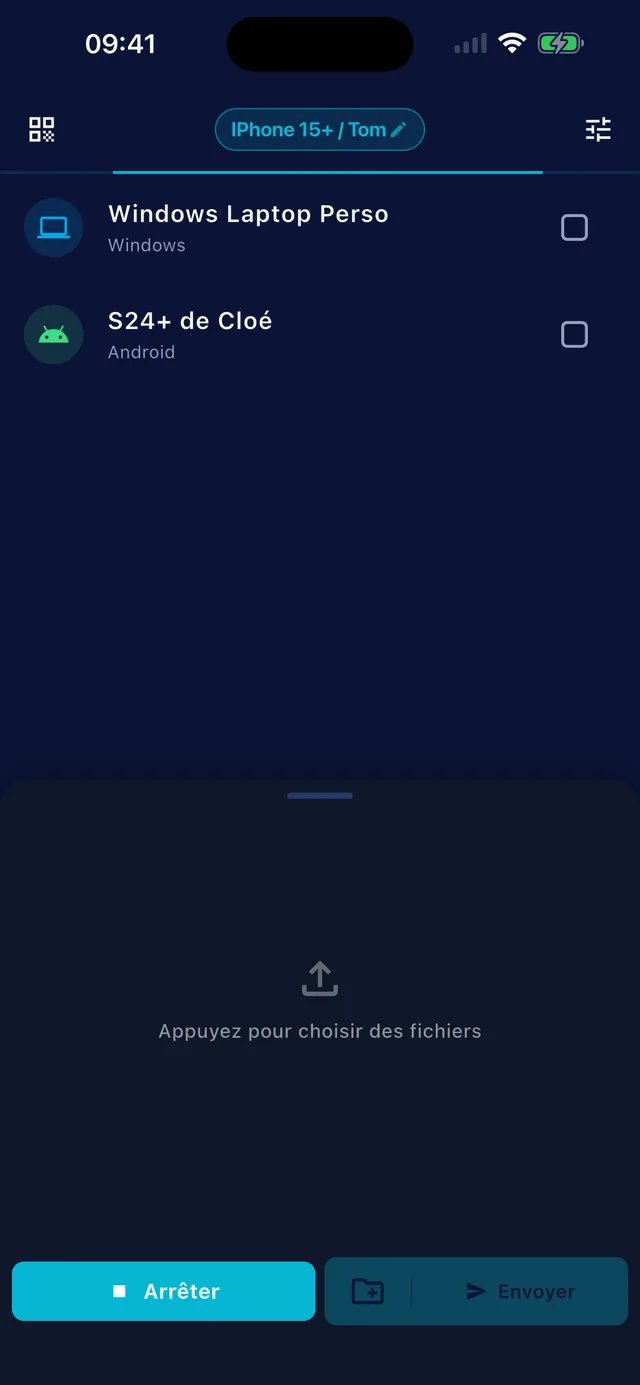
The PC shows up in the iPhone’s list. Pick your videos, photos or files, and send. On the PC, everything lands in your Downloads folder, one folder per send. The other way round, photos and videos land in Photos, everything else in the Files app.
Rather not install the app on the iPhone? Open GreySpace on the PC: the iPhone scans its QR code and swaps files in Safari, with nothing to install.
Wi-Fi drops? Nothing is lost.
GreySpace retries on its own when the Wi-Fi drops for a few seconds, without resending what already arrived. Every file is checked on arrival, and only shows up on the PC once complete.
What about what’s already installed?
For three photos, a cable or iCloud will do. Here is what each tool does, and where it stops. Moving 30 GB of videos? The step-by-step guide.
-
Phone Link, by Microsoft
Links the iPhone to the PC for calls, texts, notifications, and sending files from the Share menu (iOS 16 or later).
It only pairs an iPhone with a Windows PC: a Mac or an Android is left out.
-
Apple Devices, Apple’s app for Windows
Moves files between the PC and the iPhone over a USB cable.
Only with iPhone apps that support file sharing, and with the cable plugged in.
-
iCloud Photos
Syncs your photos and videos with the PC, over the internet.
Everything goes up to Apple’s servers and comes back down: you need a connection, and room in your iCloud storage, of which 5 GB is free.
Checked against Apple’s and Microsoft’s official help pages on 18 September 2026. iPhone, iCloud and iTunes are trademarks of Apple Inc. Windows and Phone Link are trademarks of Microsoft Corporation. GreySpace is not affiliated with Apple or Microsoft.
People often ask
For anything else, email us.
How do I transfer photos from iPhone to PC without a cable?
Install GreySpace on the iPhone (App Store) and on the PC (Microsoft Store), and put them on the same Wi-Fi. In the app on the iPhone, pick your photos and videos, then tap the PC’s name. They land in your Downloads folder, in a folder of their own.
No iTunes, no iCloud, no account, and nothing goes over the internet.
The PC doesn’t show up on the iPhone. What should I do?
Check three things. Both devices are on the same Wi-Fi, and not on a guest network, which often keeps devices apart. On the iPhone, GreySpace has Local Network access (Settings, then GreySpace). On the PC, your Wi-Fi uses the “Private” network profile (Settings, Network & internet, Wi-Fi, then your network): a “Public” profile blocks connections coming from the iPhone.
Can an iPhone without the app receive files?
Yes. On the PC, GreySpace shows a QR code. The iPhone scans it with the camera, Safari opens, and the files arrive in the browser. From that same page, it can send files to the PC too. Nothing to install, no account.
Do I need to keep the iPhone unlocked while sending?
Yes, for now. iOS pauses an app that goes to the background: if you lock the iPhone during a send, the transfer stops. GreySpace blocks auto-lock while a transfer is running, so leave the app open until it’s done.
If it did stop, send again. Nothing arrives half-done: every file is checked before it is put away.
Are my files private?
Yes. They go directly from your device to the receiver’s, on your local network. No third-party server, even as a fallback: GreySpace never relays through the cloud.
No account on the Free plan, no usage tracking in the app, nothing collected. What moves between your devices stays between your devices.
Send anything. In one click.
Free up to 10 GB of sending a month, no account. Other platforms